A Calm Way to Organize Files for a Class or Project
A simple folder structure and naming convention can make shared course materials easier to find, update and hand over without turning file management into a second subject.
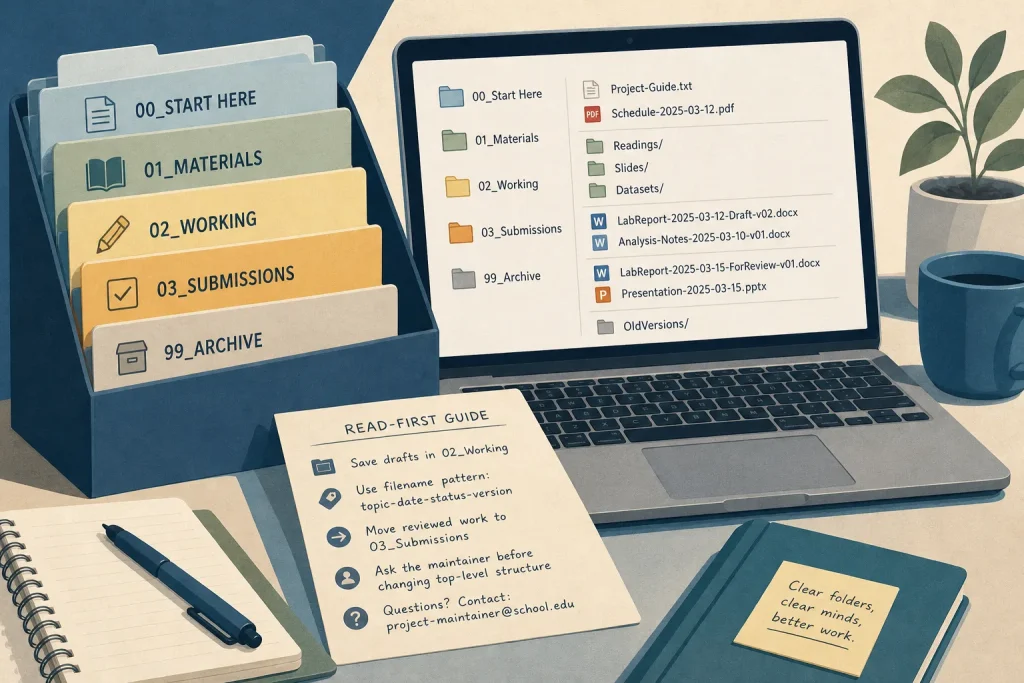
A class folder often begins with good intentions and ends with files called “final,” “final-new” and “final-use-this-one.” The trouble is rarely a shortage of folders. It is that people cannot tell where a file belongs, what it contains or whether it is still current. A small shared system can answer those questions without depending on a particular device or app.
The aim is not to classify every document perfectly. It is to make the next useful action obvious, including for someone who did not create the folder.
1. Start with one shared home
Choose a single top-level folder for the class or project, then make that the place everyone treats as authoritative. It might sit in a school’s shared drive, a team cloud folder or a locally shared directory. The storage service matters less than the agreement: current materials go here, not in a collection of private copies scattered across chat messages and desktops.
Give the folder a name that identifies the work plainly, such as “Biology Field Project” or “Community Garden Plan.” Avoid names that rely on a temporary detail, such as “This Term,” which becomes less helpful as soon as the calendar changes.
Before adding subfolders, check who can view and edit the shared home. If the material includes private student information or other sensitive content, use the institution’s approved storage and access rules. A tidy folder is not a substitute for appropriate permissions.
2. Make the first level reflect how people work
Use a short set of broad folders that map to familiar tasks. A useful starting structure is:
- 00_Start Here: the current guide, schedule, or instructions.
- 01_Materials: readings, source files, templates, and reference documents.
- 02_Working: drafts and files still being developed.
- 03_Submissions: completed work intended for review or hand-in.
- 99_Archive: material kept for reference but no longer active.
The numbers keep the folders in a predictable order in many file browsers. They are labels, not a claim that one folder is more important than another. If the project does not need a folder, leave it out. A small course with no group drafts does not need a ceremonial “Working” directory sitting empty.
Keep the first level broad enough that people can remember it. If each folder contains a dozen narrowly defined categories, users will spend their attention deciding where a file belongs instead of working on it.
3. Sort by purpose before splitting by person
For shared learning materials, folders organized by task or topic are usually easier to browse than folders organized around each contributor. A student looking for the assignment brief is more likely to think “instructions” than “the folder belonging to the person who uploaded it.”
Within Materials, a class might use subfolders such as “Readings,” “Slides” and “Datasets.” A project might instead use “Research,” “Design” and “Meeting Notes.” Pick categories that match the actual work, and keep their names distinct. “Resources,” “Useful” and “Misc” are not three categories so much as a polite way to postpone a decision.
Use a person’s name where authorship or ownership genuinely matters, such as an individual draft awaiting feedback. Otherwise, let the file name and folder purpose carry the information.
4. Give files a repeatable naming pattern
A filename should help someone recognize the document without opening it. One adaptable pattern is topic-date-status-version, with only the parts the group needs. For example: “LabReport-2025-03-12-Draft-v02” tells a reader the subject, the date associated with the file, its state and its revision.
Agree what the date means. It could be the date a meeting occurred, a document was issued or a draft was updated. Mixing those meanings makes the label less useful. Use the same date order throughout, such as year-month-day, so files sort in calendar order rather than alphabetically by day.
Keep names compact, use ordinary words, and separate parts consistently with hyphens or underscores. Avoid characters that behave differently across systems, and do not make colour, emoji or a colleague’s memory essential to identifying a file. “Final” is a status that tends to expire. Prefer specific labels such as “Draft,” “ForReview” or “Approved,” and agree who is allowed to apply the last one.
5. Separate active work from reference copies
Shared folders become confusing when drafts, source material and completed work sit together. Keep active drafts in Working, and put material ready for formal review or hand-in in Submissions. Use Materials for documents that people consult rather than edit.
When a file is replaced, decide whether the earlier version still has a purpose. If it does, move it to an archive or use the version history provided by the storage service. If it does not, remove the extra copy according to the group’s rules. Keeping every obsolete draft beside the current one is not preservation; it is a small mystery with a file extension.
Where several people edit the same document, prefer one shared working file rather than emailing separate attachments back and forth. If the service offers version history, explain how to restore or inspect an earlier revision. The exact controls differ by platform, so the group should use the help materials for its chosen service rather than assume every button behaves alike.
6. Put a short map where new readers will see it
Use 00_Start Here for a brief note that explains the folder structure, naming pattern and location of the current instructions. Include who maintains the shared home and where questions should go. Keep the note short enough to read before someone gives up and makes a new folder called “My Stuff.”
Make the map itself easy to identify, for example “Read-First-File-Guide.” If the project uses a recurring process, include a few direct instructions: save editable drafts in Working; use the agreed filename pattern; move reviewed work to Submissions; ask the named maintainer before changing the top-level structure.
Do not rely on a README file extension being supported everywhere. A plain text document, a short document in the shared service or a simple PDF can all work. The useful feature is clear access, not technical fashion.
7. Assign maintenance without creating a file police force
A system needs light upkeep, but not a committee meeting for every rename. Choose one person to maintain the top-level structure, while letting contributors name their own files within the shared rules. The maintainer can resolve duplicates, retire empty folders and update the Start Here note when the process changes.
Set a natural review point, such as the end of a unit or the handover between project phases. At that point, move completed material to Archive, confirm that the current instructions are easy to spot, and remove temporary copies that no longer serve a purpose. Do not reorganize folders in the middle of a busy hand-in period unless a specific problem makes it necessary.
When the system causes repeated hesitation, change the system. If contributors keep asking whether a file belongs in “Materials” or “Working,” rename or clarify those folders. A structure should reduce decisions, not demand that everyone memorize its private logic.
Hypothetical worked example: a group research project
Imagine a class group starting a research project with a shared cloud folder, several students, one teacher and a deadline approaching. The group needs to keep source readings, notes, a draft report and the reviewed submission distinct. They create “Local History Project” as the shared home, then add “00_Start Here,” “01_Materials,” “02_Working,” “03_Submissions” and “99_Archive.” Inside Materials, they add “Readings” and “Meeting Notes.”
They agree to name files with topic, date and status, using “InterviewNotes-2025-04-08-Draft” for notes from a meeting and “Report-2025-04-15-ForReview” for the report sent to the teacher. One student maintains the top-level folders. When feedback arrives, the group keeps the shared draft in Working, updates it there, then places the reviewed hand-in copy in Submissions. The expected result is that a new group member can locate the readings and current report from the folder names alone. The tradeoff is that the group must agree on labels and resist saving a second “final” copy in a private location.
8. Treat consistency as the useful feature
No folder pattern can prevent every confusing filename or duplicate upload. Its value is that people can predict where materials go and what labels mean. Start with the few folders and naming rules the group can actually follow, put the explanation where people can find it, and revise only when a recurring problem appears.
When a class or project ends, leave behind an archive that another person can understand: current materials, clearly named completed work and a short note about what has been retained. The final act of file organization is not making everything look immaculate. It is making the next person’s first search uneventful.
Keep exploring
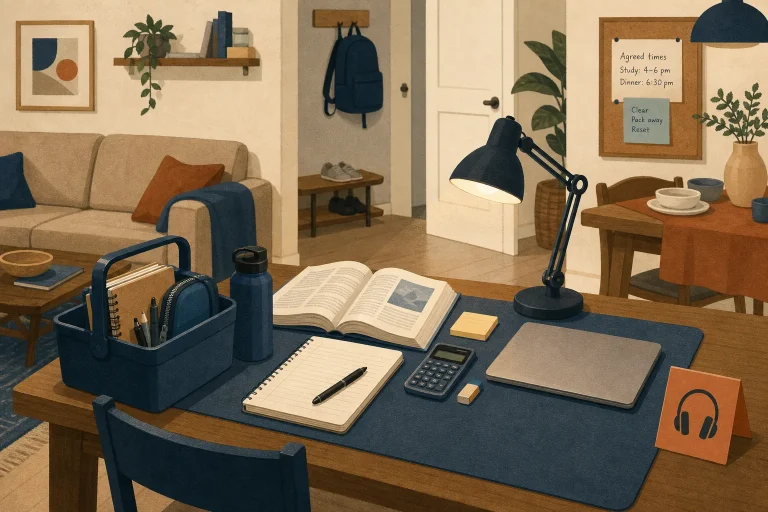
Set Up a Study Corner in a Shared Room
Create a temporary place to work in a room that serves several purposes, keep supplies contained,…
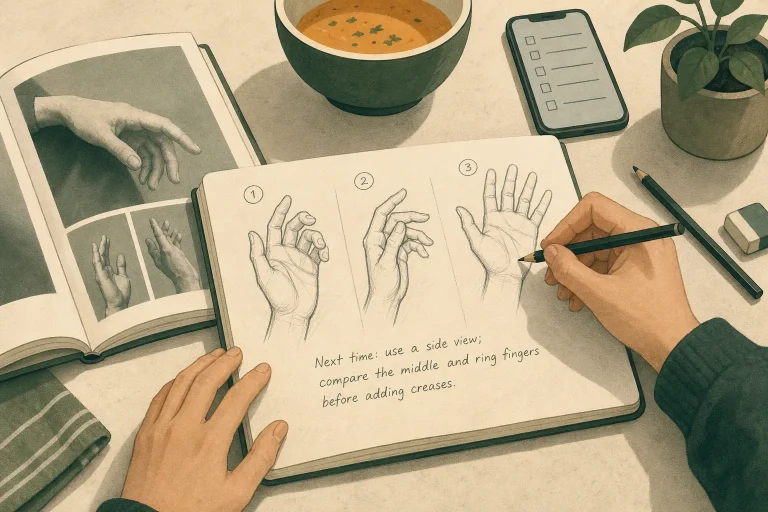
Practicing a Creative Skill When Time Is Short
A small, repeatable practice session can make room for creative work without pretending the day has…